Menu Builder for Zen Cart
Menu Builder for Zen Cart
FREE
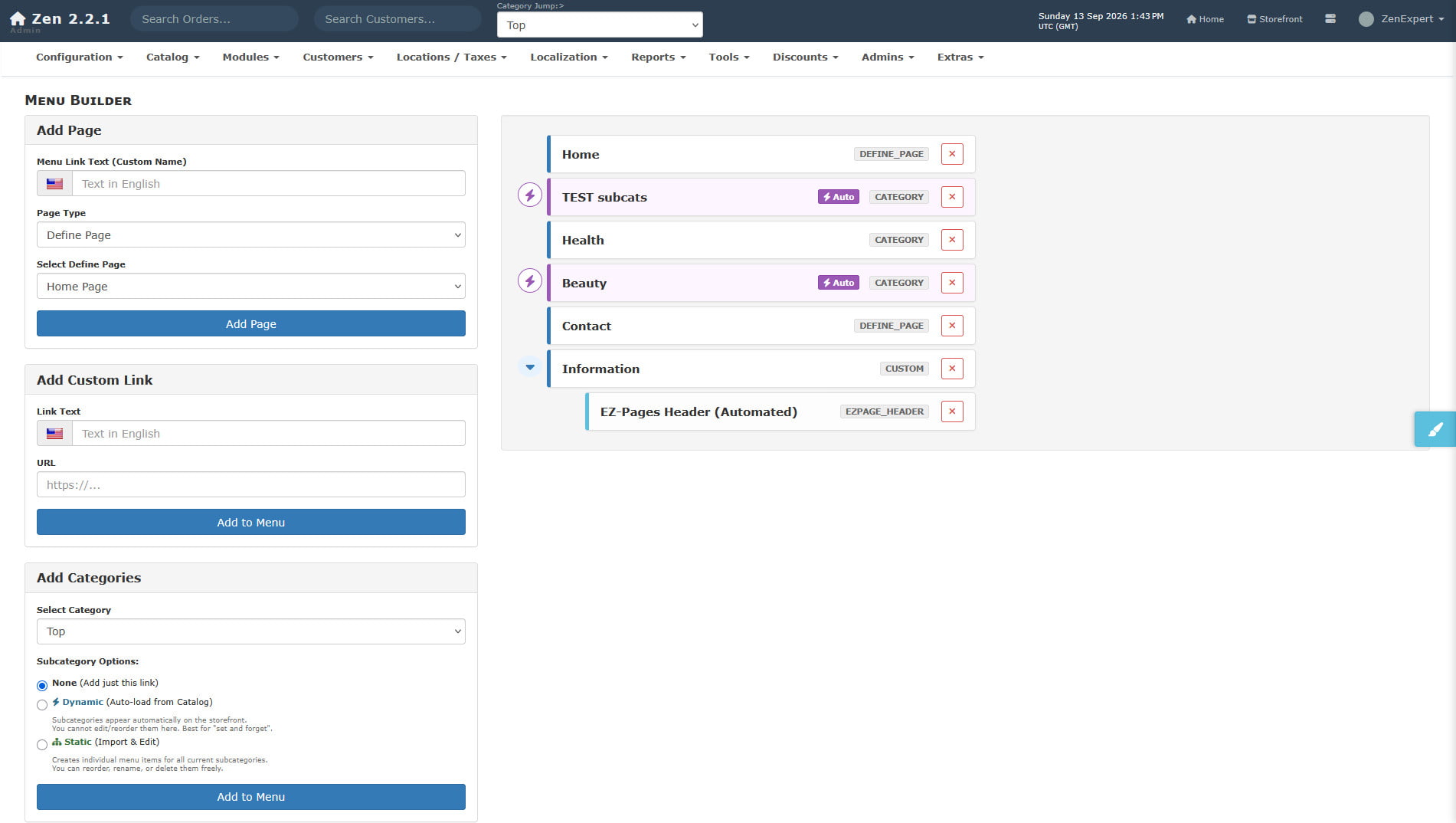
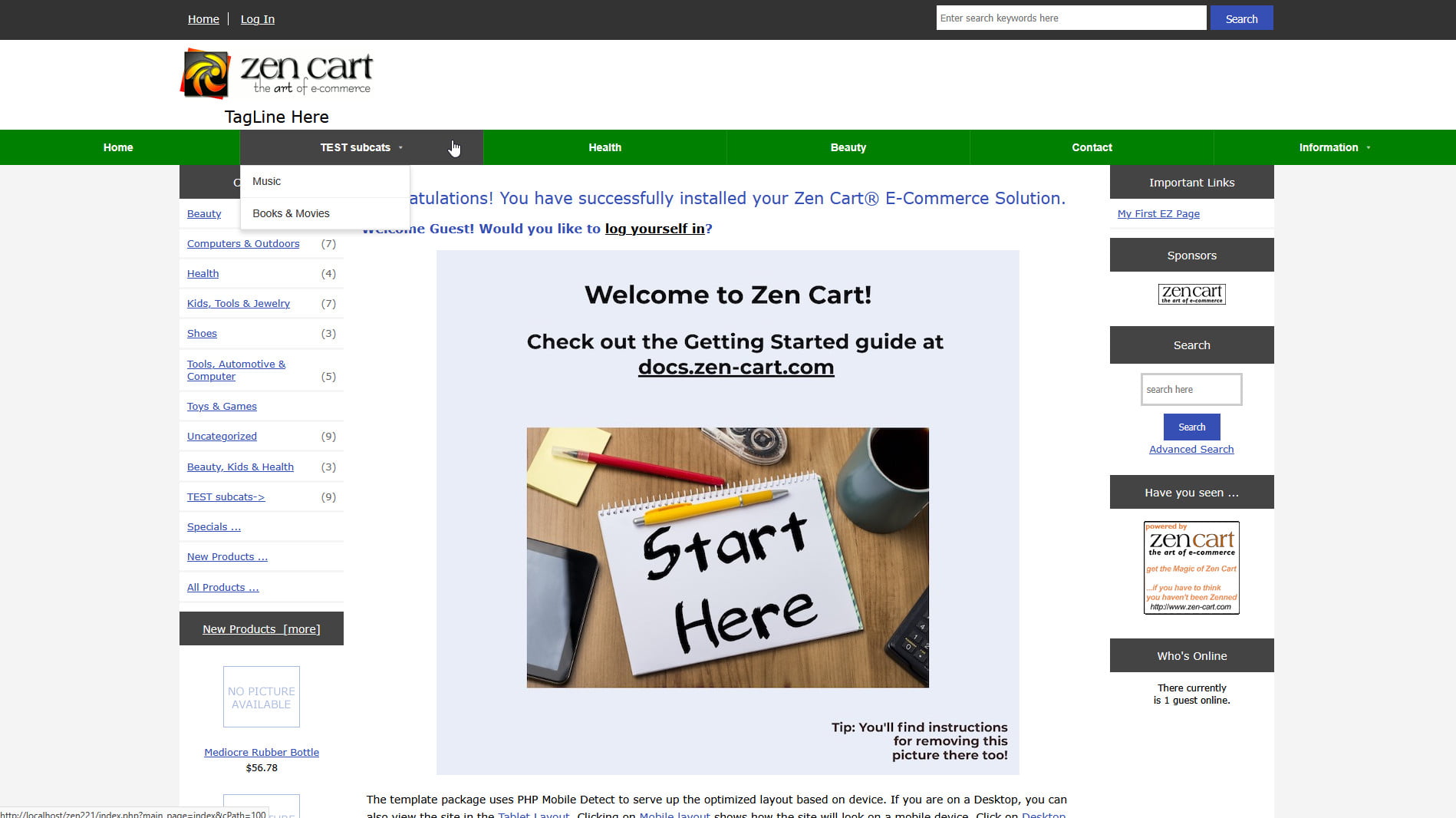
ZX Menu Builder is built as a strict Encapsulated Plugin for Zen Cart 2.x. It allows the admin to build a custom dropdown menu (megamenu) to display on the frontend.
We DO offer professional installation service for the module, although you're most welcome to install it yourself. Installation is simple and no coding knowledge is required.
FREE DOWNLOAD PRO install service - $20Features & Usage
Adding Menu Items
The builder supports several dynamic node types that can be mixed and matched within your hierarchy:
- Categories: Select native Zen Cart categories. You can choose to import them statically (snapshots the current subcategories) or dynamically (auto-loads subcategories directly from the catalog).
- Custom Links: Create links to internal promotion pages or external websites. Internal absolute paths are automatically safely stripped to relative paths.
- Define Pages: Easily map native Zen Cart define pages (Contact Us, Privacy, Shipping, etc.) into the menu tree.
- EZ-Pages: Link to specific, active EZ-Pages directly.
- EZ-Pages Header (Automated): Injects your entire active EZ-Pages header bar directly into the menu as a cohesive block, leveraging the native
tpl_ezpages_bar_header.phplayout automatically. Note: this option is usually best to be placed nested under a custom link option.
Drag & Drop Sorting
Using the interactive nesting UI, grab the handle of any menu item to reorder it. Drag items slightly to the right to indent them beneath a parent item, instantly creating a dropdown submenu. The plugin utilizes an aggressive auto-save feature via AJAX - every time you drop an item, the new structure is saved instantly across all languages.
Multilingual Support
ZX Menu Builder allows you to input link text for every installed language simultaneously. When adding a Custom Link or a Page, a text input is generated for each active language. The storefront will automatically query and display the menu structure corresponding to the customer's selected language.
Frontend Style Editor
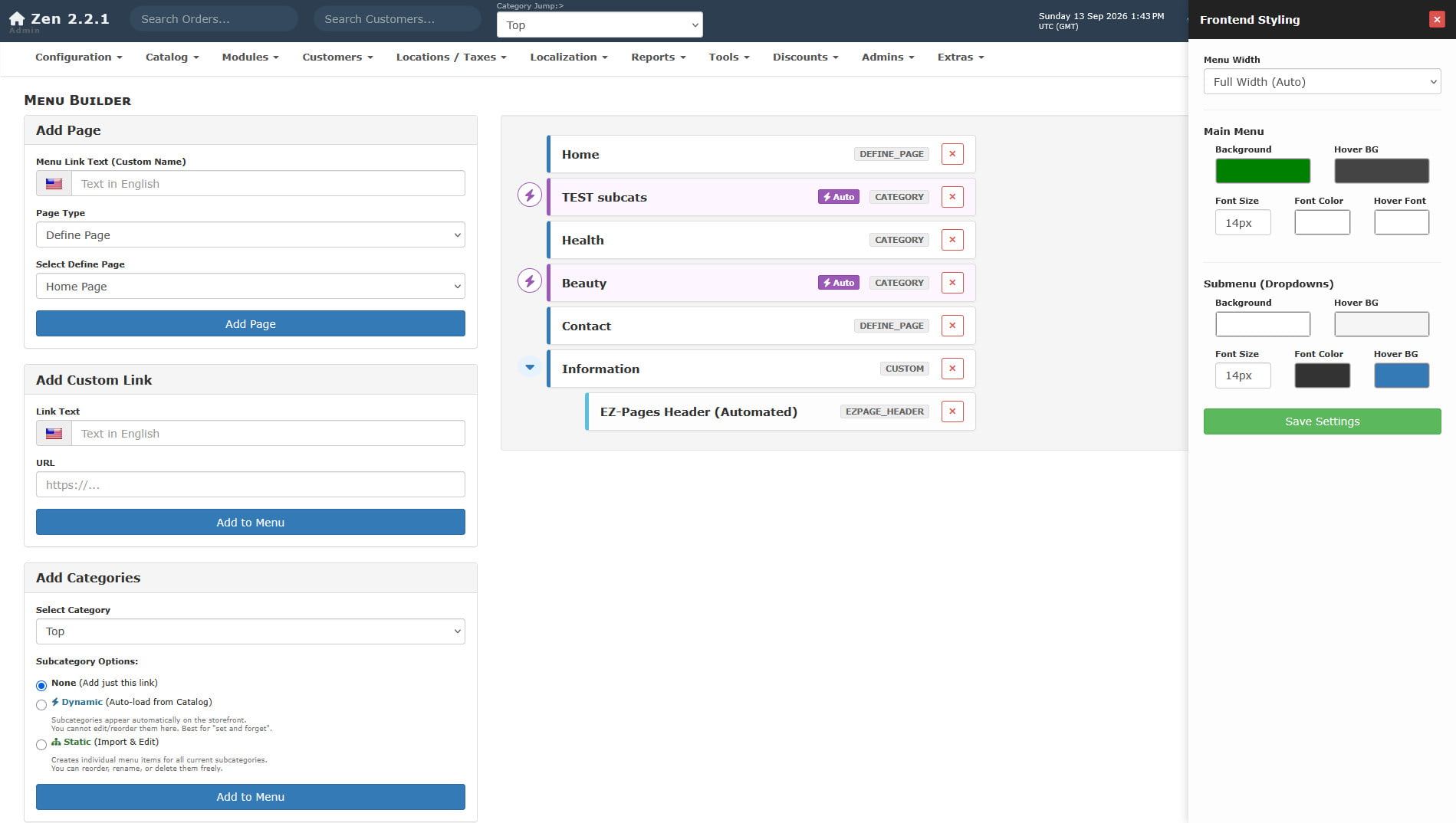
Click the floating brush icon on the right side of the admin panel to open the Style Sidebar. Here you can control:
- Layout: Toggle between Full Width (Auto) and Boxed Container layouts (with customizable maximum widths).
- Main Menu Colors: Adjust the primary background color, text color, font sizes, and hover states.
- Submenu Colors: Distinctly style the dropdowns and flyout menus with separate background and text colors.
These settings are saved to a hidden configuration array and automatically injected into the frontend <head> as CSS variables via an observer, requiring no manual CSS editing.
Mobile Responsiveness
The frontend menu renderer features a fully automated mobile breakpoint (768px). On mobile devices, the horizontal navigation bar collapses into a hamburger toggle button. Clicking this button triggers a smooth slide-out canvas overlay where the hierarchical dropdowns are converted into tap-friendly accordion toggles.
| Current Version: | 1.0.0 |
|---|---|
| Supported Zen Cart Version: | 2.0.0 or newer |
| jQuery version: | none |
| Additional jQuery libraries | none |
| Database Affected: | YES - backup your database |
| Core Files Affected: | none |
| Template Files Affected: | none |
Installing
This is an Encapsulated Plugin, meaning you simply upload the files to your zc_plugins directory and install it from admin->Modules->Plugin Manager.
- Unzip the package.
- Upload the contents of zc_plugins files to your server, maintaining the directory structure.
- Log into your Zen Cart Admin.
- Navigate to Modules > Plugin Manager.
- Find Menu Builder in the list.
- Click the Install button.
Detailed guides on how to get your free API keys for each social platform are included with the plugin files.